


Windows Update Blocker v1.8
Windows Update Blocker Windows 11 and 10 offers less UI control over the updating behavior of the operating system than previous versions of Windows , There is no option to turn off Windows Updates using the Control Panel or Settings app in Windows 11 & 10, it checks for updates automatically and install any updates they find, whether you like it or not.
This new feature is actually pretty convenient for most users. If you want control over the update process you can disable the Windows Update service . This requires that you open the Services manager, locate the service and change its startup parameter and status. You would then have to enable the service again whenever you want the operating system to check for updates (It does not look so easy).
Lightning Fast
Instant status changes and quick control.
100% Secure
Clear control with safe system handling.
Portable Utility
Run anywhere with no installation.

Why Choose Windows Update Blocker?
Control your system updates with a lightweight, reliable, and free tool.
One-Click Control
Enable or disable updates with a single action and clear status feedback.
Extremely Lightweight
Runs fast with minimal resources and no background clutter.
100% Secure
Designed for safe, responsible update control with transparency.
Portable / No Install
Carry it anywhere and run it without installation or leftovers.
Regular Updates
Keep control current with clear update support and guidance.
Multilingual Support
Use the tool comfortably across supported languages.
Windows Update Blocker v1.8
(Latest Version)
Version
v1.8
Size
452 KB
Platform
Windows
Windows Update Blocker
Windows Update Blocker is a freeware that helps you to completely disable or enable Automatic Updates on your Windows system , with just a click of the button .
One-click control
Windows Update Blocker is a freeware that helps you to completely disable or enable Automatic Updates on your Windows system , with just a click of the button .
Portable utility
This utility is portable, which means that you are no longer required to go through the installation process and no leftovers will remain on the HDD after its removal.
Take it anywhere
if you place the program file to an external data device, you make it possible to take Windows Update Blocker everywhere with you and use it on any computer you come in contact with, who has things configured just right, and doesn't want to take the chance that an update might mess up their system.
How it works
Fast, reliable control over Windows Update with a clean and secure workflow.
Disable updates safely
service status icon will show your windows Update service status , if you want to block Automatic Windows Updates Choose "Disable Service" And click "Apply Now" Button , Protect service setings can prevent Uncontrolled change (Recommended).
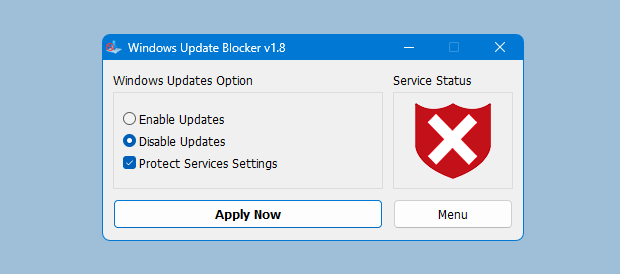
Quick setup
After downloading, extract Windows Update Blocker to your desired location, then run it.
How to block any other service and protect the settings
Windows Update Blocker New version allow users to add any other service into Wub.ini file to block it , first please edit Wub.ini file and add your desired service name under the "dosvc=2,4" line , for example if you want to block "Windows Update medic Service" Please open services and find it
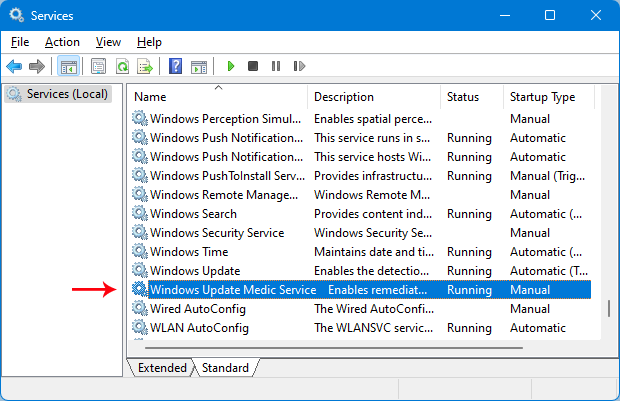
open services and find it
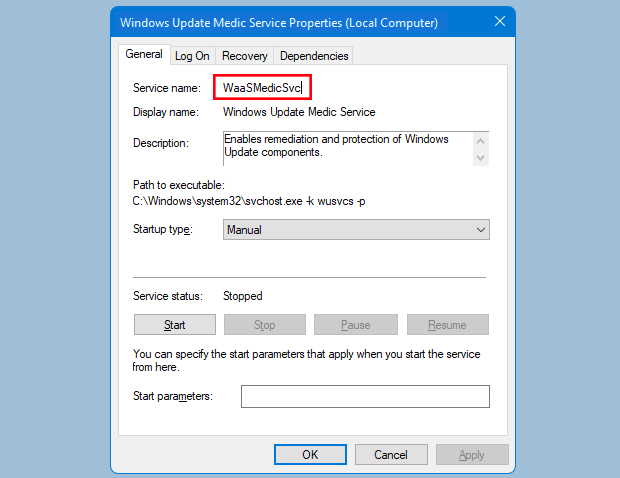
then click on it and copy the Service Name
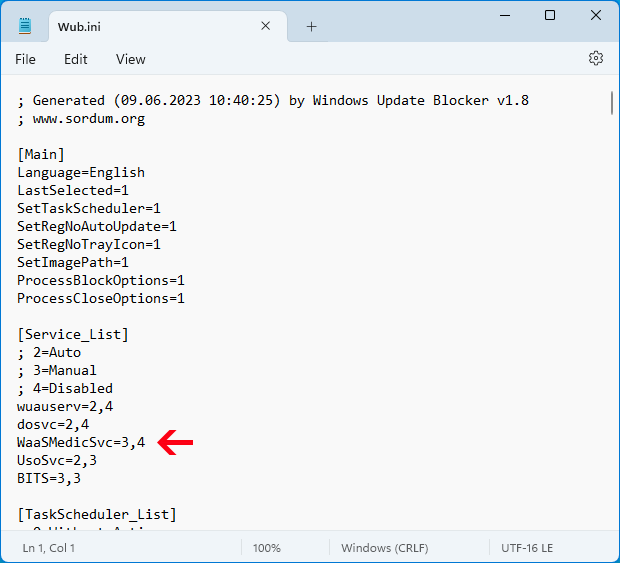
Write or paste the service name under the dosvc=2,4 line
Finally open Windows Update Blocker and use "Apply now" button.
If you want to delete recently added service after a while please follow these steps:
- Open Windows Update Blocker and choose enable service option then use Apply now button.
- Delete your desired service line from the Wub.ini file
- Now you can choose disable service and Protect service settings options
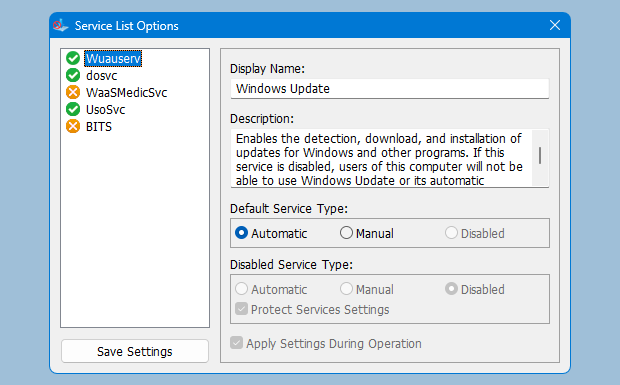
Service List Options
Under Menu button there is a "Service List Options" choice if you click it , Service List Options popup window will be open.
With this GUI you can easily control services which added to Wub.ini [Service_List] section.
You can add Maximum 25 service to Wub.ini. Wuausrv service showing only for informational purposes therefore you can not edit it.
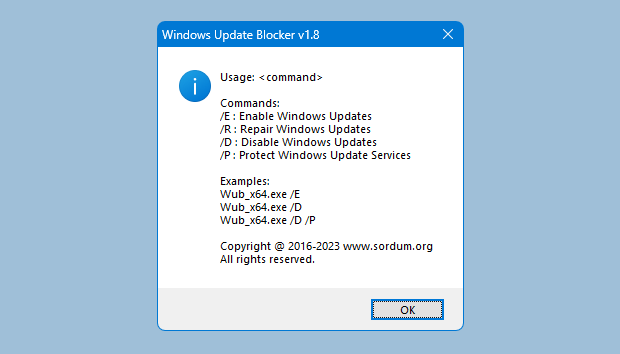
Windows Update Blocker supports Command line options to automate Windows Update Blocker tasks :
File: Wub.exe | Virustotal
MD5: 82aff8883099cf75462057c4e47e88ac
SHA1: 68e2939f59b3869e9bd3ecc4aca3947649631bf8
Supported operating systems
Minimum
- ✓Windows XP (32/64-bit) and above
- ✓452 KB free disk space
- ✓Portable usage, no installation required
Recommended
- ✓Windows 10 or Windows 11
- ✓Admin permissions for service control
- ✓Restart after enabling updates if required
Troubleshooting Guide
Quick fixes for the most common issues.
The "Enable" button is greyed out.
Ensure you are running the application as Administrator. Right-click the exe and select "Run as Administrator".
Windows Update still starts automatically.
Check if you have other third-party update managers installed, as they may override these settings.
FAQ
FAQImportant NOTE:
If the windows update service doesn't start or if there is a problem even though you have enabled windows updates, please restart your system and try again.
When windows updates are turned off, some windows processes or programs may try to open and repair Windows updates, resulting in windows update being damaged.
Please use the Windows Update Troubleshooter from Microsoft if the updates do not open after restarting the system.
Wub software does not block Microsoft defender updates.
What Our Users Say
Join millions of satisfied users...
"DNS Jumper saved me hours of frustration and made update control effortless."
Alex King
System Administrator
"Clean, lightweight, and reliable. I finally control update timing."
Maria Brooks
IT Operations
"Portable tool with clear status visibility. Exactly what I needed."
Jordan Lee
Power User
5M+
Downloads
4.9/5
User Rating
30+
Languages
100%
Free